The Property Overview dashboard allows you to manage all your properties and related orders in one place. With a property-first approach, you have a centralized hub for accessing orders, visuals, documents, and property details.
🧭 Step-by-step Guide
Step 1 – Access Your Dashboard
- Log in to your Backbone account.
- The dashboard opens on the Property Overview screen by default.
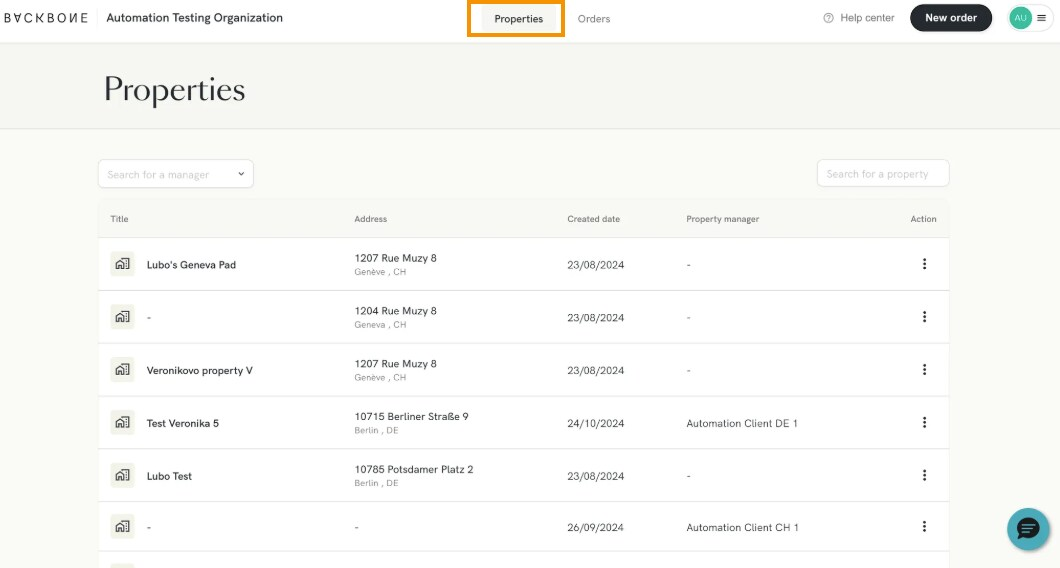
Step 2 – Create a Property
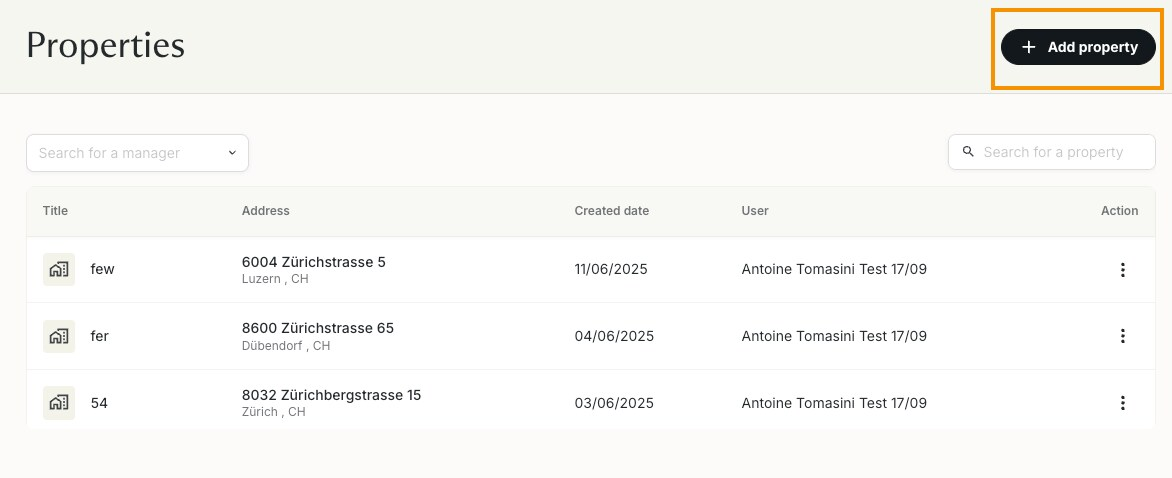
- Click the + Add property button in the upper right corner of the Property Overview.
- Name the property as part of the order process.
Step 3 – Switch Between Property and Order Views
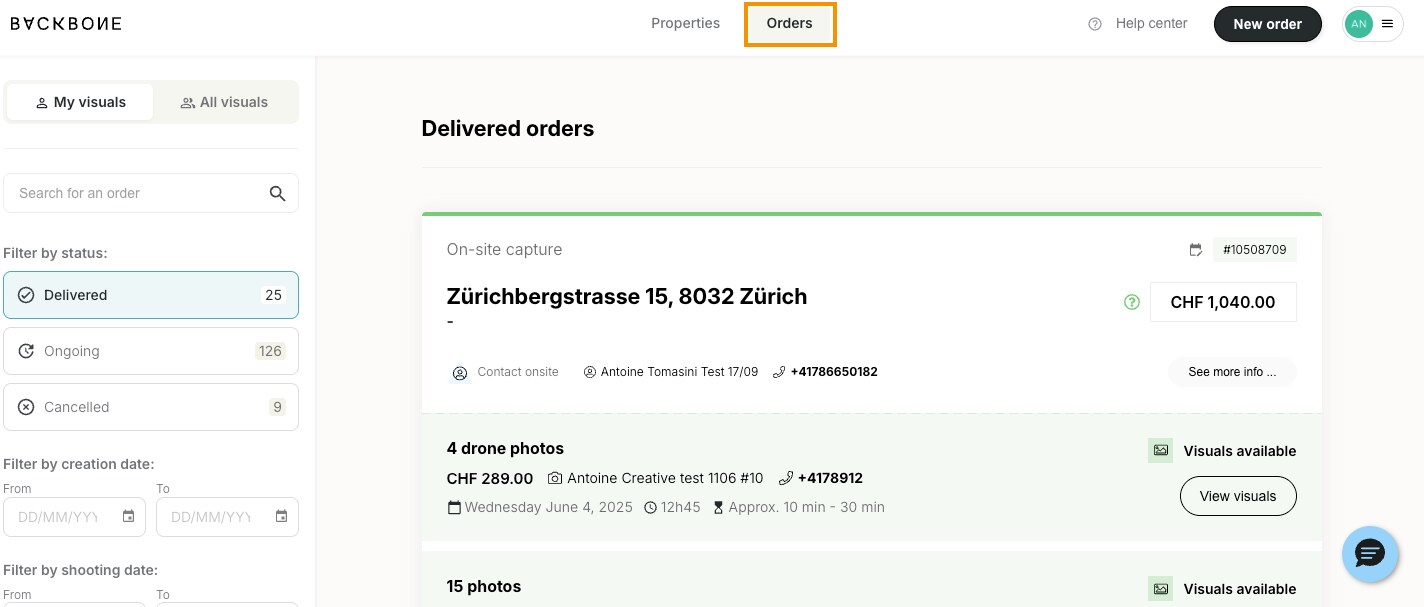
- The Property Overview is always the default view.
- To view your orders, select the Orders tab at the top of the dashboard.
Step 4 – Manage Property Details
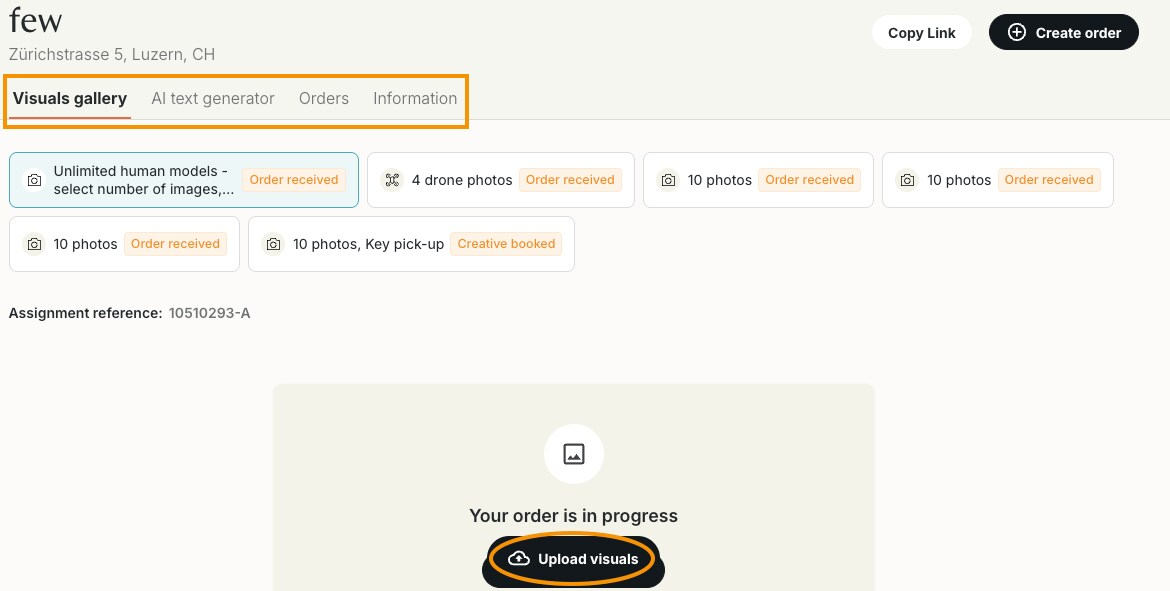
Select any property in your Property Dashboard to access:
- Linked Orders: All orders associated with the property.
- Visuals Gallery: All media connected to the property.
- Documents: Certificates, regulatory files, and important documentation.
- AI Text Generator: Tool to assist with property listing descriptions.
- AI Editor: Download your own visuals and edit them with our AI Editor tool.
- Information Panel: Edit property name, address, manager, and property type.
Step 5 – Automatic Grouping of Orders
Your recent orders are automatically grouped under properties, giving you a complete overview from your first login.
💡 Notes
- The following actions are not currently available:
- Deleting or merging properties.
- Moving visuals from one property to another.
❓ FAQ
Q: Why do I see properties I did not create?
A: Orders are automatically grouped by property to keep your account organized.
Q: How do I change a property’s name or address?
A: Select the property and update details in the Information section.
Q: Can I delete a property?
A: Property deletion will be possible in a future update.
Q: Can I create a property without placing an order?
A: Yes you can create a property directly from your Property Overview dashboard.
Q: Can I upload my own images?
A: Yes, you can upload your own visuals in a property view.