You can order all Backbone products directly through the Backbone platform. Start with your property, then add any combination of products for it, such as a shoot, a floor plan and an energy certificate, all in one order.
- Orders cannot currently be placed through the Backbone mobile app. Please use the web platform instead.
- We do not accept purchase orders as a way to place an order. Please create a Backbone account or log in to your existing account and place your order directly on the platform.
🧭 Step-by-Step Guide
- Log in to the Backbone platform.
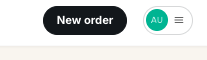
- Click "New order" in the top bar.
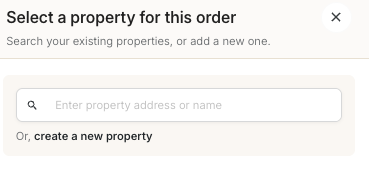
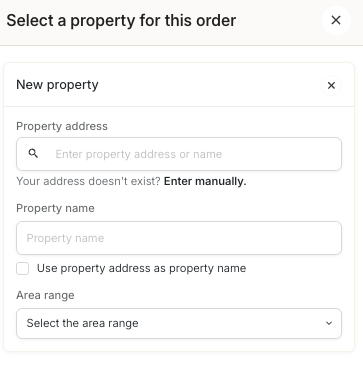
- Select your property. Search for your existing properties by address, then select the one you want. To order for a new property, click Create a new property, then enter the property address and a property name. If the area range of the property isn't on record yet, you'll be asked to select it once. It's then saved on the property for future orders. Click Next step.
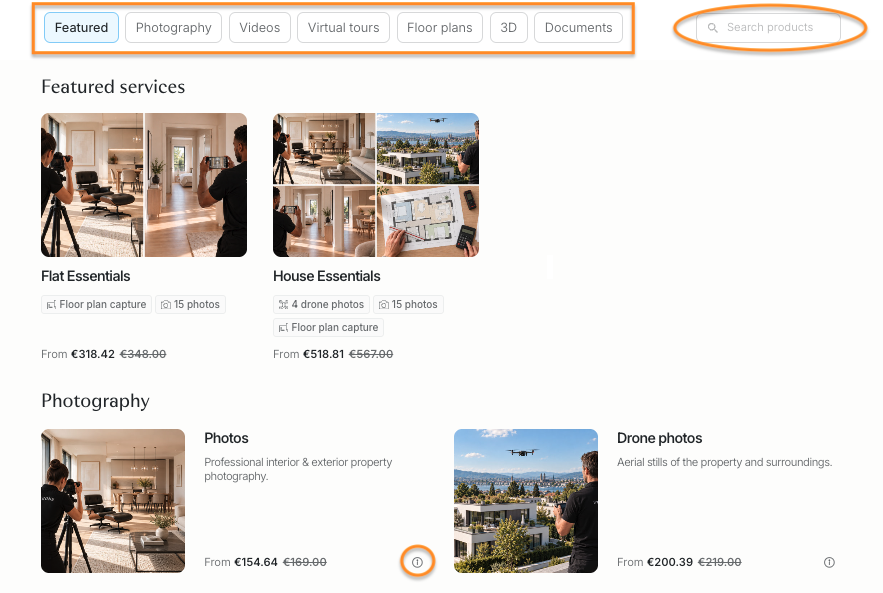
- Add your products from the Catalogue. Use the search field or the categories (Featured, Photography, Videos, Virtual tours, Floor plans, 3D, Documents) to find what you need. Featured services show our packs and most popular products. Click the i on a product to see what's included, or click the product to choose its size, options, and add-ons, then click Add to cart. You can add as many products as you need for the same property. When you're done, click Proceed to configuration.
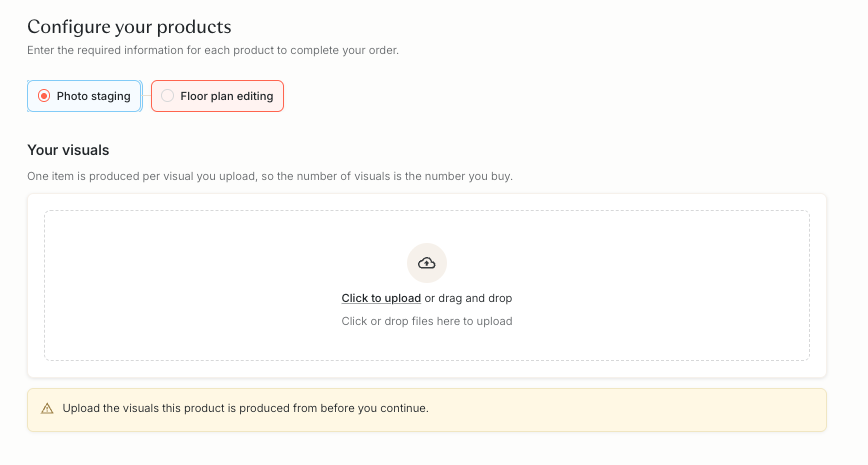
- Configure your products, if needed. Some products need extra details, for example, the rooms and style for virtual staging, the plan to redraw for floor plan editing, or building data and documents for an energy certificate. Each of these products has its own tab, and products still to configure are marked in orange. This step is skipped if none of your products need it.
- Add your instructions, if needed. For on-site products, set up how the shoot will happen:
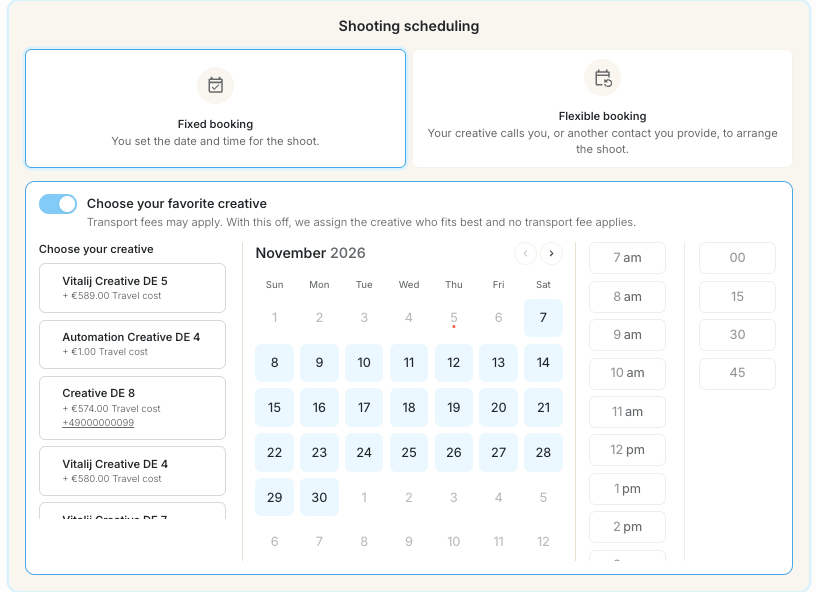
- Shooting scheduling: choose Fixed booking to set the date and time yourself, or Flexible booking so the photographer calls you (or a contact you provide) to arrange it.
- Choose your favorite creative (optional): turn this on to pick a photographer you've worked with before. If you leave it off, we assign the photographer who fits best.
- Meeting & site access: choose who will be on-site, who the photographer should call to arrange the meeting, or Key pick-up.
- Order comments: add anything useful for the photographer, such as access details or your expectations.
This step is skipped if your order has no on-site product.
- Choose your payment method and billing details. Select credit or debit card, invoice, or SEPA direct debit (depending on what your workspace allows), then select or add your invoicing address. You can also add an invoice reference and other email addresses that should receive the order emails.
- Review and place your order. The Summary shows your date, meeting details, contact person, every product with its uploaded files, and the total. Click Go back to when you need to go back to any step, then click Place order. Card payments are confirmed at this step.

💾 Coming Back to an Unfinished Order
Your order saves automatically as you go, so you can stop at any step and finish it later.
- Unfinished orders are listed under Draft orders when you click New order. Click one to reopen it at the step where you left off.
- Drafts are kept for 14 days after your last change, including uploaded files.
- Drafts are saved in the browser where you started the order. They won't appear on another computer, in another browser, or if you clear your browser data.
- To delete a draft, click the bin icon next to it, or Clear all to delete all of them.
📂 Additional Information for Editing Products
Staging and slideshows from the same shoot: If you order photo staging or a slideshow together with a Photo shoot, you don't need to upload anything. For staging, you only choose how many images to stage, then select them in your gallery once the photos are delivered.
Editing your own photos or files: Products such as photo or AI editing, rendering, and floor plan editing are made from files you provide. You'll be asked to upload them in the product details or at the Configure step. If you want these products for photos from a shoot you're ordering now, place the shoot order first and order the editing once your photos are delivered.
🔑 If No One Will Be On-Site During the Shoot
Under Meeting & site access, choose Key pick-up if the photographer should collect the keys from another address (a travel fee based on distance applies and is shown in your cart). If the keys are left at the property, for example in a key box, choose I will be present on-site (Fixed booking), so the photographer has your phone number.
Please make sure to:
- Provide clear access instructions in the order comments, including any entry codes or where to find the keys (for example, a key box).
- Include any other useful details that could help the photographer access the property and complete the shoot smoothly.
- Stay reachable by phone around the scheduled start time in case the photographer has questions.
💡 Good to Know Before Ordering
- Lead time: If you haven't agreed on a date with a specific photographer, please allow at least 48 business hours to organise an on-site shoot.
- One property per order: All products in an order are for the same property. To order for several properties, place one order per property.
- Choosing your photographer: Your list shows photographers who have already worked for you or your workspace, and your favorites. If a photographer has a travel cost, it's shown next to their name and added to your cart as Creative travel fee. If you leave the switch off, no transport fee applies. When booking a fixed date and time with a chosen photographer, confirm their availability with them first, as their calendar isn't checked.
- Products by country: The catalogue shows the products available in your property's country. Some products, such as authority documents, are only available in Germany.
- Your prices: If your workspace has a discount, your price is shown next to the crossed-out list price.
- Fast delivery: Available for workspaces with a subscription only.
- Team permissions: In Pro and Enterprise workspaces, team members need the Can place order permission to place orders. Learn more in Your Complete Guide to Your Workspace & Backbone Plan.
🔁 After Placing Your Order
Your order appears in your orders list, like any other order. Need to make changes or find your order details? Use these guides:
- Add or remove products: Adding or Deleting Products From an Order
- Cancel or reschedule an order: How to Cancel or Reschedule an Order
- Find your order details and uploaded files: Where to Find Your Order Information and Uploaded Files
❓ FAQ
Q: I can't find the order I started. Where is it? A: Unfinished orders are saved for 14 days in the browser where you started them. Click New order in that same browser and you'll find it under Draft orders.
Q: Why is the "Choose your favorite creative" switch turning itself off? A: You don't have a photographer to choose from yet. Leave the switch off and we'll assign the photographer who fits best, with no transport fee. After a shoot, rate the finished order and choose Add as favourite to add that photographer to your list.
Q: Why can't I go to the next step? A: Something on the current step is still missing. Hover over or click the greyed-out button to see what, for example a product still to configure or a photographer to select.
Q: Why am I asked for the area of my property? A: Prices depend on the property's area range. Select it once and it's saved on your property.
Q: Why does a product say "Not available in your country"? A: This product isn't sold in the country where your property is located. Check that the property address is correct.
Q: My draft says the uploaded files have expired. What should I do? A: Upload the files again. The rest of your order is kept.